Setup guide · Agee Race Timing (ART)
Agee Race Timing (ART) has the clock built in: it sends the race name, the running clock, and each finisher’s place, name and time as their chip is read. You point ART at the clock’s address; Agee’s own guide inside ART has the steps.
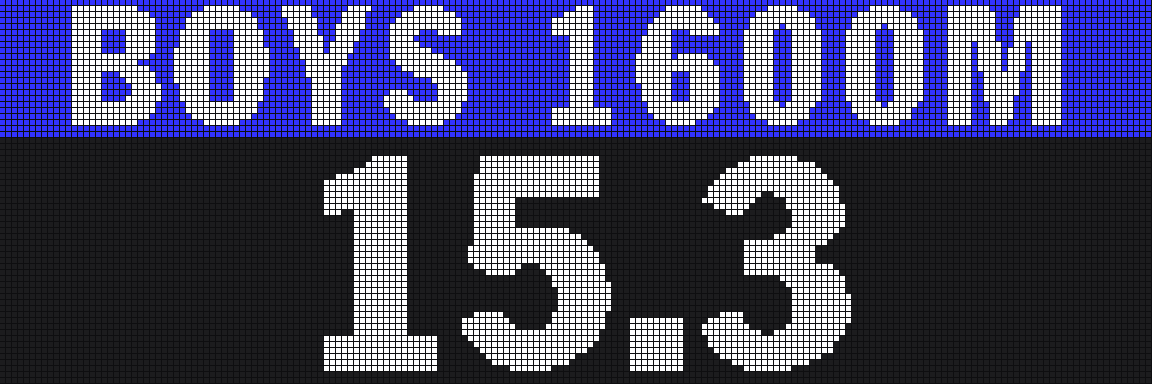
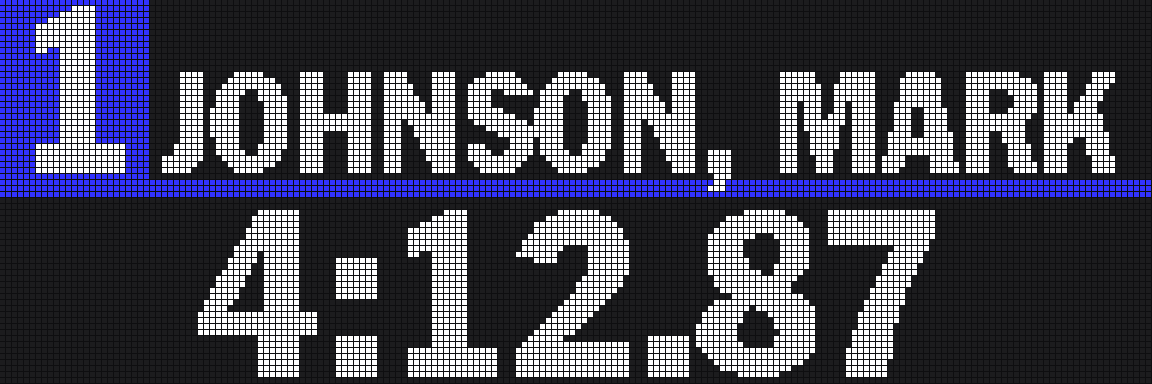
Plug the clock into the timing network’s switch or router with an Ethernet cable, or join it to the timing wifi. A cable is the most reliable choice at a meet.
Power the clock on. Once it is connected it shows its address, then ETHERNET or the wifi network name. Write the address down: the timing software needs it.
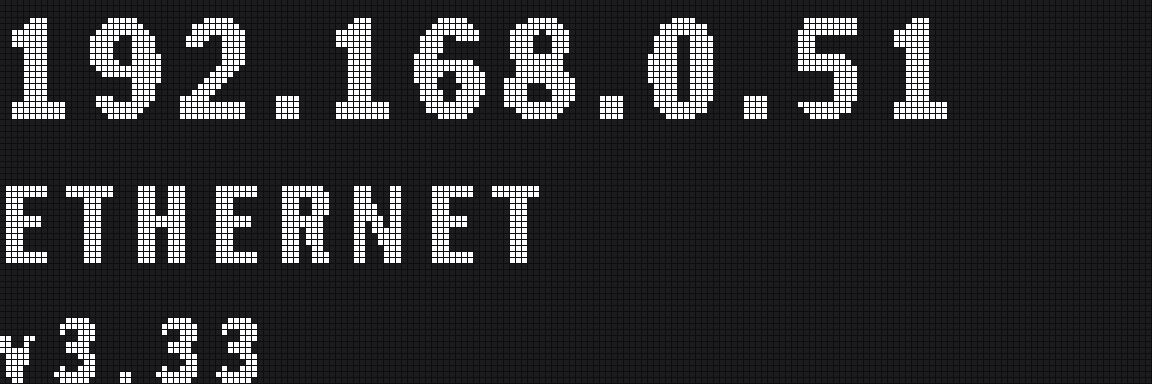
Put the ART laptop on the same network, with an address no other device uses, for example 192.168.0.10 and subnet mask 255.255.255.0. Then check it can reach the clock: in PowerShell on that computer, type this with the clock’s address. TcpTestSucceeded : True means the timing software will be able to connect.
Test-NetConnection 192.168.0.51 -Port 2001In ART, open the External Account options and the Finished Results clock’s Interface Guide. Agee’s guide has the current steps for your version.
Enter the clock’s details:
| Address | the clock’s address (factory 192.168.0.51 on Ethernet, 192.168.0.52 on wifi) |
|---|---|
| Port | 2001 |
Start a race: the clock shows the race name and the running clock.
As finishers’ chips are read, the clock shows each one’s place, name and time.
Start a test race in ART: the clock shows the race name and the running clock.
Email support@finishedresults.com with your Agee Race Timing version, the address the clock shows and what you see.
For Agee Race Timing itself, see Agee Race Timing.