Setup guide · Lynx System Developers
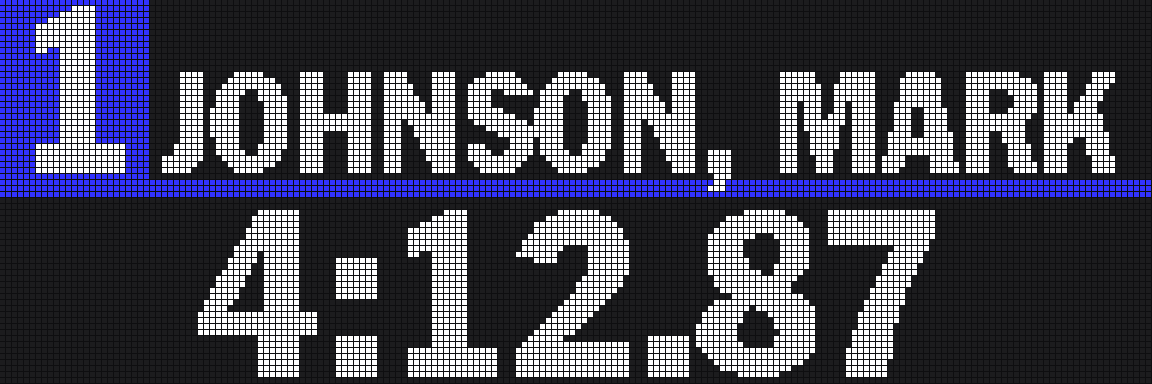
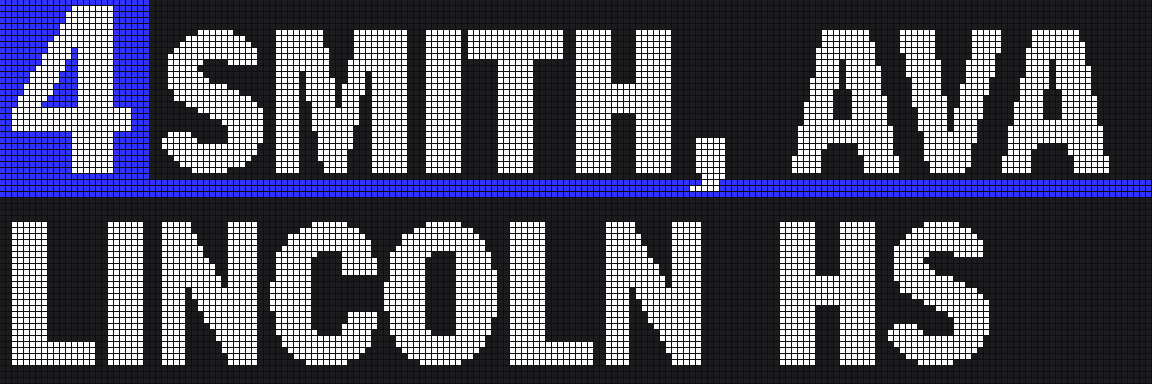
FinishLynx sends the event name, the running time and the results to the clock as it times each race. You add the clock as a scoreboard in FinishLynx, with one of our scripts.
Close FinishLynx.
Download the script for your clock (see Scripts on this page) and copy it into the FinishLynx folder, normally C:\Lynx.
Plug the clock into the timing network’s switch or router with an Ethernet cable, or join it to the timing wifi. A cable is the most reliable choice at a meet.
Power the clock on. Once it is connected it shows its address, then ETHERNET or the wifi network name. Write the address down: the timing software needs it.
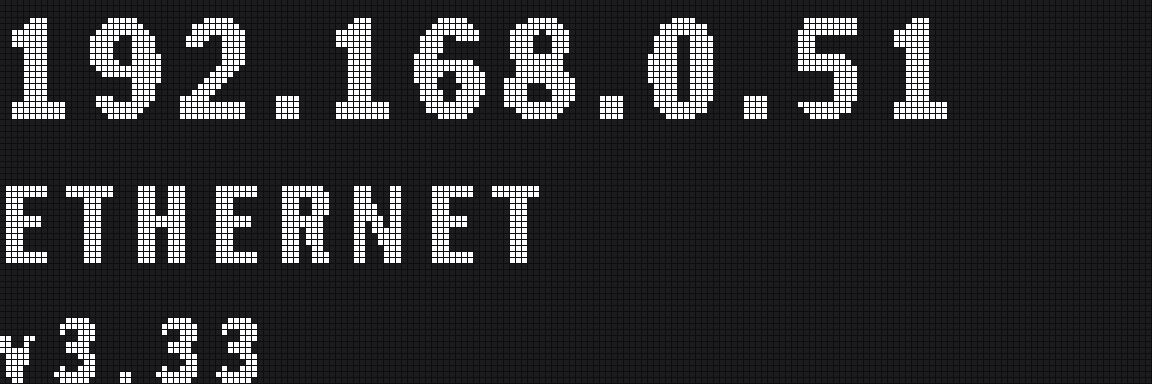
Put the FinishLynx computer on the same network, with an address no other device uses, for example 192.168.0.10 and subnet mask 255.255.255.0. Then check it can reach the clock: in PowerShell on that computer, type this with the clock’s address. TcpTestSucceeded : True means the timing software will be able to connect.
Test-NetConnection 192.168.0.51 -Port 2001Open FinishLynx, then File ▸ Options, the Scoreboard tab, and click New.
Fill in the scoreboard settings:
| Script | Your LED-Race-Clock-FinishLynx-v3 script |
|---|---|
| Name | LED Race Clock |
| Code Set | Single Byte |
| Serial Port | Network (connect) |
| IP Address | the clock’s address (factory 192.168.0.51 on Ethernet, 192.168.0.52 on wifi) |
| Port | 2001 |
| Running Time | Normal, with the option Send results if armed |
| Results | Auto, with the option Always send place |
| Paging | Ticked. Size 1, Max blank, Time 2 |
| Time Precision | Hundredths |
Click OK, then close FinishLynx and open it again. On the Scoreboard tab the clock’s status should now read Running.
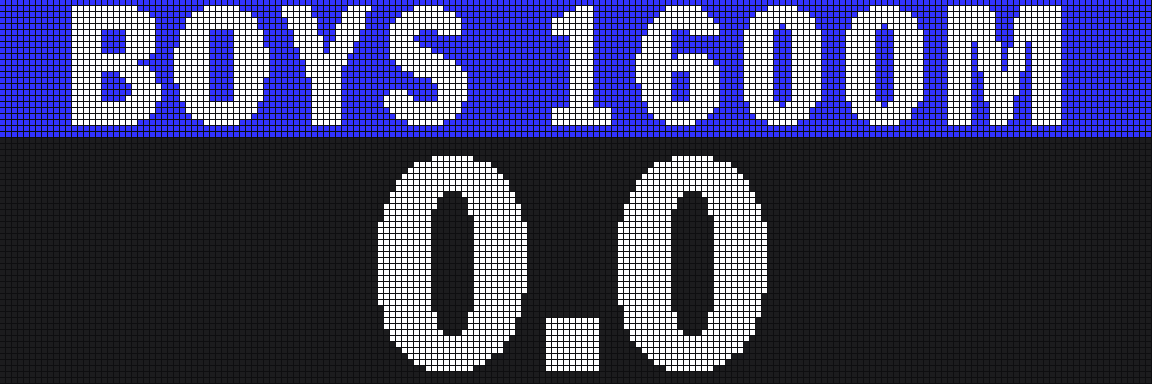
Open an event from the schedule. The clock shows the event name and 0.0.
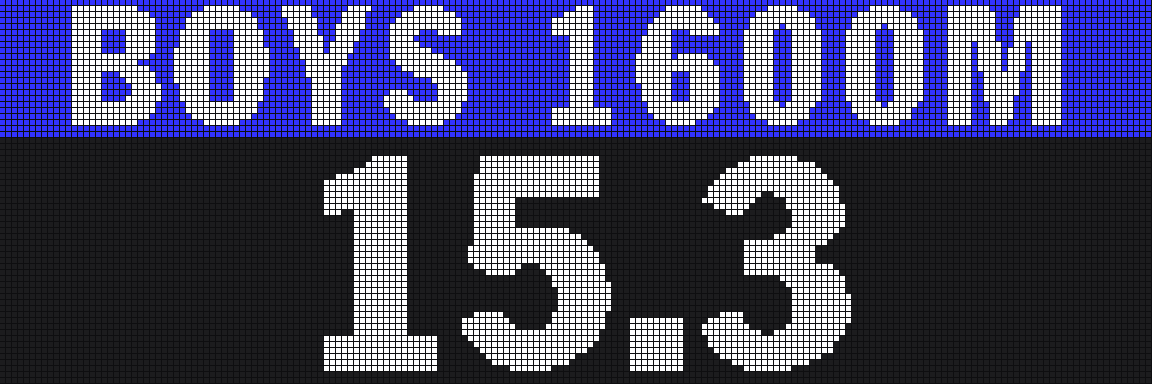
Start the race with the start sensor. The clock shows the running time.
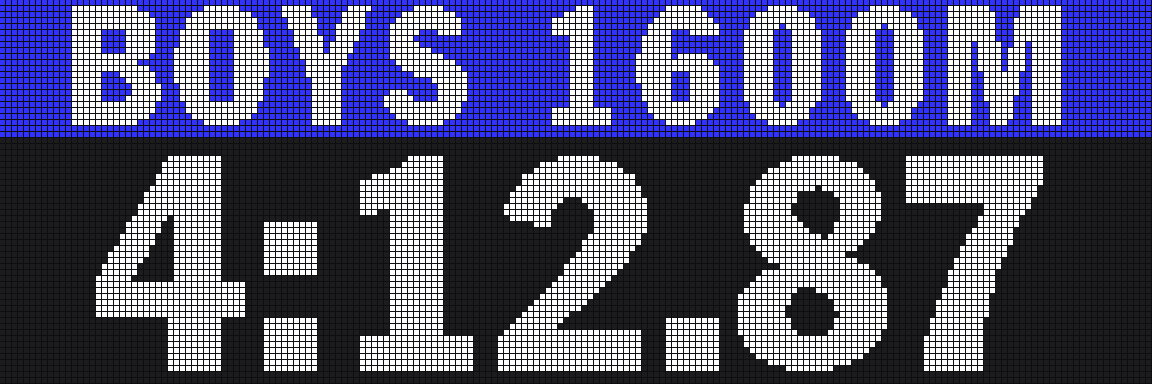
Capture and read the finish. Alt+S stops the running time on the clock; Alt+E shows the results, one place at a time.
Open the next event: the clock goes back to the event name and 0.0.
Between events, Scoreboard ▸ Show time of day puts the FinishLynx computer’s time of day on the clock. Select it again to go back to the events.
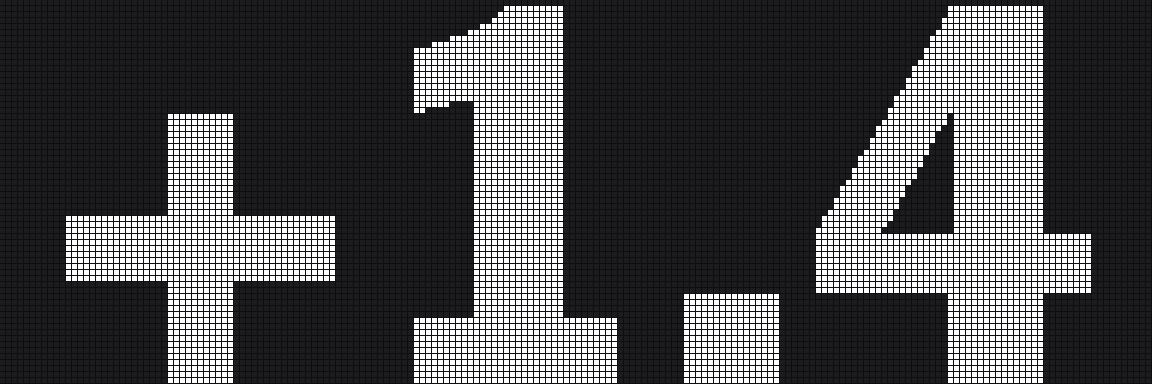
A second clock can show each race’s wind reading in big numbers.
Add another scoreboard as above, with the wind clock’s address and these settings:
| Script | LED-Race-Clock-FinishLynx-v3-Wind.lss |
|---|---|
| Running Time | Off |
| Results | Auto |
| Paging | Ticked. Size 1, Time 5 |
When FinishLynx has the race’s results and wind reading, the wind clock shows the reading.
Open an event in FinishLynx: the clock shows the event name and 0.0.
Email support@finishedresults.com with your FinishLynx version, the address the clock shows and what you see.
For FinishLynx itself, see FinishLynx.