Setup guide · Athletic.net
When a meet runs on AthleticLIVE, AthleticSB can send its data straight to the clock through Data Only Outputs, with our scripts. Track times come from FinishLynx through AthleticLIVE; field marks come from the AthleticFIELD app. No clock update is needed.
Plug the clock into the timing network’s switch or router with an Ethernet cable, or join it to the timing wifi. A cable is the most reliable choice at a meet.
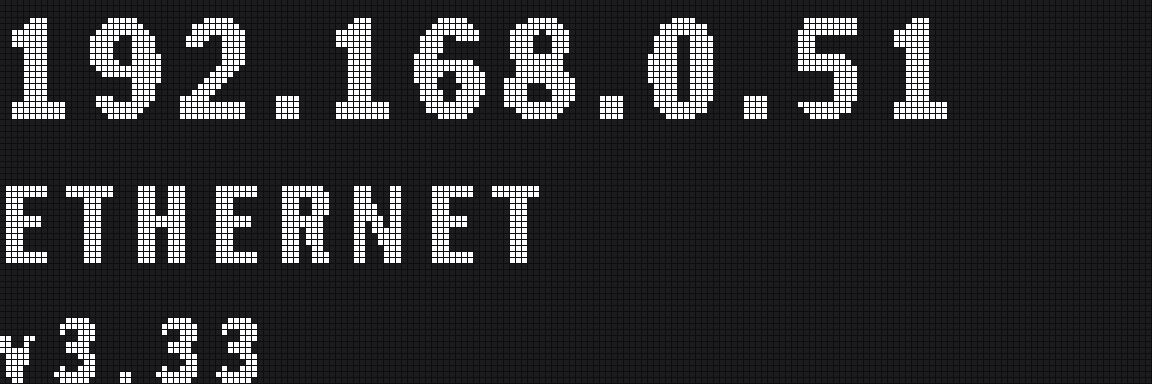
Power the clock on. Once it is connected it shows its address, then ETHERNET or the wifi network name. Write the address down: the timing software needs it.
Put the AthleticSB computer on the same network, with an address no other device uses, for example 192.168.0.10 and subnet mask 255.255.255.0. Then check it can reach the clock: in PowerShell on that computer, type this with the clock’s address. TcpTestSucceeded : True means the timing software will be able to connect.
Test-NetConnection 192.168.0.51 -Port 2001In AthleticSB, open Edit Default Settings, tick Show Data Only Output Boards and save.
Under Select a Meet, pick the meet on AthleticLIVE. Its Upload Protocols must be on: they open 48 hours before the meet, and saving the meet’s Edit page turns them off.
On the Dashboard click Create Data Only Output and add a Live Track Standings output:
| Script | LED-Race-Clock-AthleticSB-Track.lss |
|---|---|
| Protocol | TCP |
| Code Set | Single Byte |
| IP | The clock’s address |
| Port | 2001 (AthleticSB accepts it, although the form suggests 6000 to 60000) |
| Paging | On. Size 1, 3 seconds |
| Set Data | Scoreboard 1 |
Add a second output, Live Time Only, with the same script, TCP, Single Byte, IP and port, and Set Data Scoreboard 1.
Press the green Play button on each output.
In FinishLynx, keep sending to AthleticLIVE as usual: the results scoreboard (alive-results.lss, Network (connect)) and the running clock (tmioRuntime.lss, Network (UDP)), with the addresses from the meet’s details page on AthleticLIVE.
Set the event’s laps to go to 0 (or blank) at the finish. With laps to go above 0, AthleticLIVE drops the times and the clock gets no results.
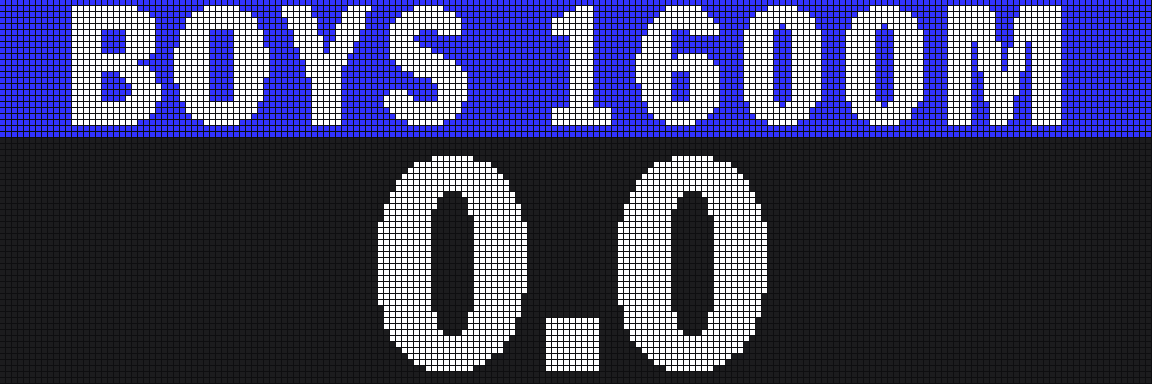
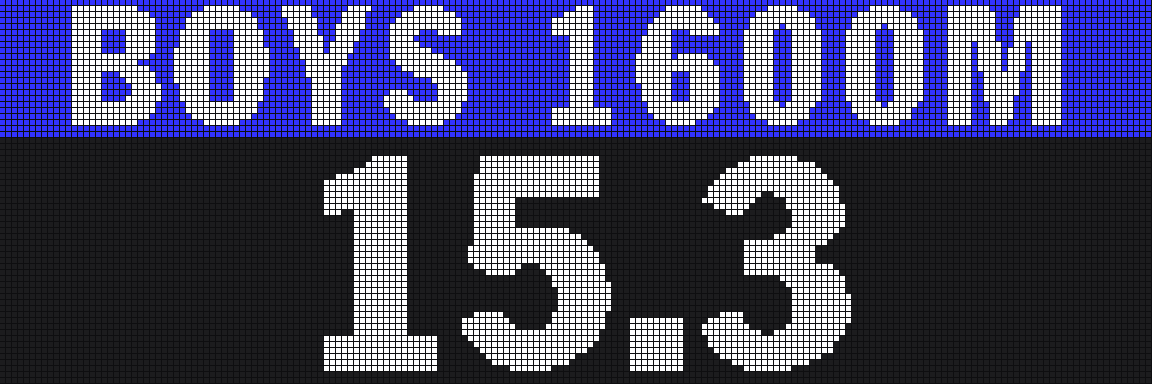
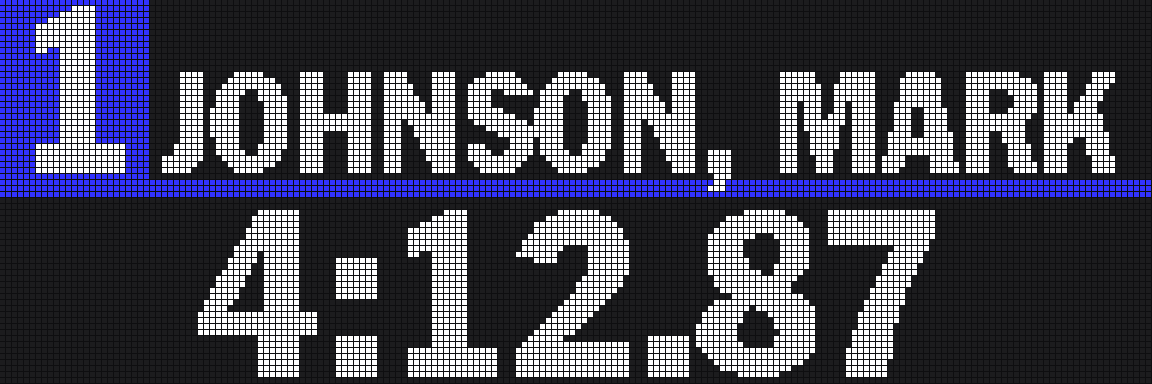
Arm an event in FinishLynx: the clock shows the event name and 0.0, then the running time, then the results.
In the meet’s settings on AthleticLIVE, set Live Field Scoreboard to AthleticField App, then turn Upload Protocols back on.
Run the event in the AthleticFIELD app. It must be the same event as in the AthleticLIVE meet (number, name, athletes), with no final results yet.
In AthleticSB add a Field Result Data Only Output for the clock:
| Script | LED-Race-Clock-AthleticSB-Field.lss |
|---|---|
| Protocol | TCP |
| Code Set | Single Byte |
| IP | The clock’s address |
| Port | 2001 |
| Set Data | The event |
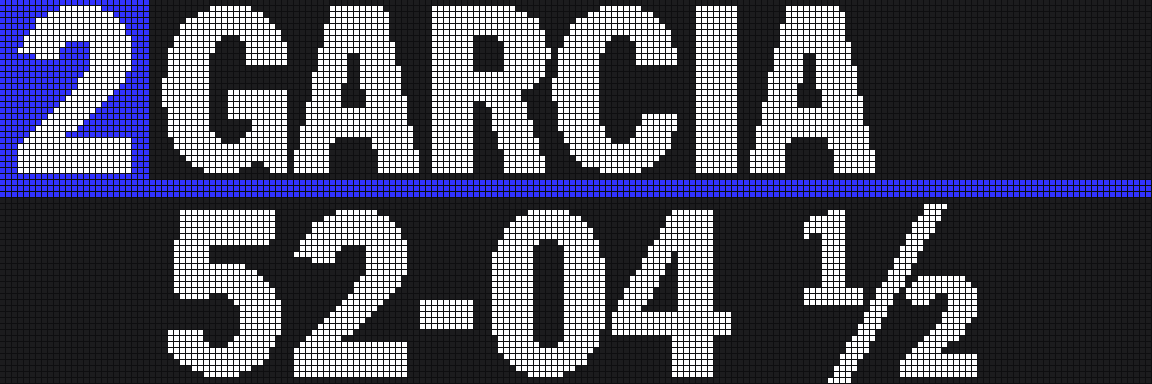
Press Play. While an athlete is up the clock shows “--” and the name; after a mark, the place, name and mark.
Arm an event in FinishLynx: the clock shows the event name and 0.0.
Email support@finishedresults.com with your AthleticSB version, the address the clock shows and what you see.
For AthleticSB itself, see Athletic.net support.