Setup guide · Lynx System Developers
FieldLynx sends each athlete’s name, place and mark to the clock as you enter them, and can rotate through the standings. You add the clock as a scoreboard in FieldLynx, with our script.
Close FieldLynx.
Download LED-Race-Clock-FieldLynx.lss and copy it into the FieldLynx folder, normally C:\Program Files (x86)\Lynx\FieldLynx Windows.
Plug the clock into the timing network’s switch or router with an Ethernet cable, or join it to the timing wifi. A cable is the most reliable choice at a meet.
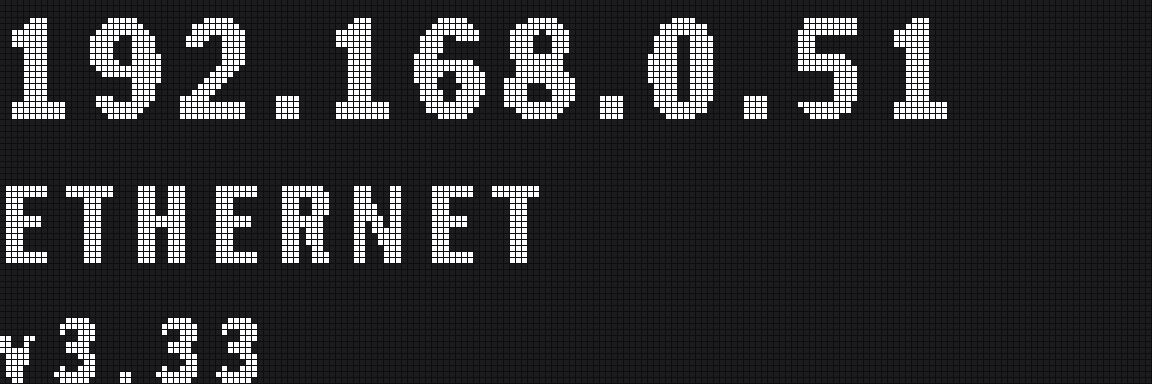
Power the clock on. Once it is connected it shows its address, then ETHERNET or the wifi network name. Write the address down: the timing software needs it.
Put the FieldLynx computer on the same network, with an address no other device uses, for example 192.168.0.10 and subnet mask 255.255.255.0. Then check it can reach the clock: in PowerShell on that computer, type this with the clock’s address. TcpTestSucceeded : True means the timing software will be able to connect.
Test-NetConnection 192.168.0.51 -Port 2001Open FieldLynx, then Options ▸ Preferences, the Scoreboard tab, and click New. Name it FR-Race-Clock.
Click Configure:
| Metric | LED-Race-Clock-FieldLynx.lss |
|---|---|
| English | LED-Race-Clock-FieldLynx.lss |
| Standings Script | LED-Race-Clock-FieldLynx.lss |
| Code Set | Single Byte |
Click Settings, set these and leave the other boxes clear:
| Results | Manual |
|---|---|
| Allow | Both |
| Paging | Ticked. Time 1.0, Size 1 |
| Auto Display Mark | Ticked |
| Auto Display Next Athlete | Ticked |
| Only Output Valid Marks During Simultaneous Display | Ticked |
Click Communication:
| Network | Selected, Connect |
|---|---|
| Host IP Address | the clock’s address (factory 192.168.0.51 on Ethernet, 192.168.0.52 on wifi) |
| Port Number | 2001 |
Click OK, then close FieldLynx and open it again.
Set up the event in FieldLynx and select an athlete. The clock shows the athlete’s name.
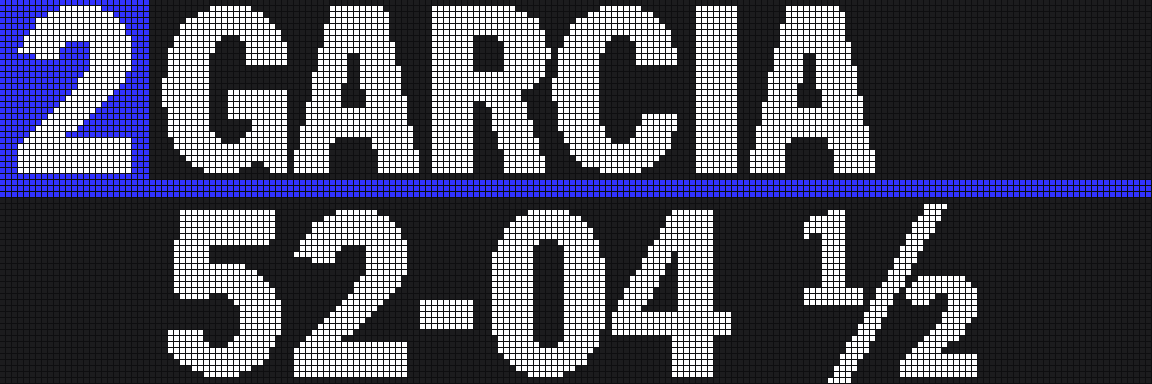
Enter a mark. The clock shows the athlete’s place, name and mark.
Click Show standings to rotate through the athletes with their best marks.
Select an athlete in FieldLynx: the clock shows the name.
Email support@finishedresults.com with your FieldLynx version, the address the clock shows and what you see.
For FieldLynx itself, see FieldLynx.